Preview and publish setup
Build in a private draft, compare desktop and phone, then launch deliberately.
1
Choose your path
Only relevant steps appear
2
Preview the draft
Booking page and emails
3
Publish workspace
One readiness-checked action
Clear answers and visual walkthroughs for booking spaces, managing members, handling service requests, collecting payments, and running your workspace.
Follow the numbered steps from top to bottom.
Build in a private draft, compare desktop and phone, then launch deliberately.
Create the space, set when it can be booked, and share its public link.
Let outside guests securely pay when they reserve a space.
Bring in customer businesses, allowances, and space access in bulk.
Yes. Use Analytics choices on the public ZoomRoom website to allow or decline Google Analytics. Optional analytics starts only after you allow it and measures public page/browser traffic. It excludes tenant portals, private account pages, form answers, payments and bookings. You can withdraw at any time; the choice does not change advertising measurement or access to the service.
No. On the AZOffices booking portal, you can allow or decline Google Ads measurement without changing availability, payment, or your reservation. If you allow it, AZOffices can count a confirmed, paid room booking and its amount after an ad click. Names, contact details, and booking access links are not sent. You can change the choice on the Privacy page; declining may prevent AZOffices from attributing the booking to an ad.
After signing in, open your main dashboard and select Show me how on the Add to phone card. If you scan the QR code on a computer, it opens a branded installation guide on your phone. On iPhone or iPad, open the guide in Safari, tap Share, select Add to Home Screen, turn on Open as Web App, and tap Add. On Android, open the guide in Chrome, open the browser menu, and select Install app or Add to Home screen. On a Windows computer, select Install app; afterward, find the workspace from the Start menu, right-click its open taskbar icon to pin it, or open chrome://apps in Chrome to create a desktop shortcut. If you dismiss the card, use Add to phone in your account menu at any time. The shortcut uses the workspace name, logo, and brand color and opens the correct workspace for your account.
Workspace owners can open Customers, then Announcements. Write the message, choose tenant contacts, company owners, or all active members, and send to every active company or selected companies. ZoomRoom shows the recipient count before sending and can send a private test to the owner first. Each recipient receives an individually addressed email, so tenant addresses are never exposed to one another. Owners may also post the message in the member portal and can review the permanent send history and per-recipient delivery results afterward.
Members receive a private email when they are included in an announcement. If the workspace owner also posts the announcement to the portal, the latest update appears on member home and all current updates appear under Announcements. Portal announcements disappear after the expiration selected by the workspace owner, while the owner retains the permanent send record.
Workspace staff can open Support near the bottom of the admin navigation, then choose New request. Select a category and priority, describe what happened and its business impact, and attach a screenshot if helpful. ZoomRoom automatically includes the current page, browser, time, and timezone. Staff can see their own requests; admins and owners can see every support request from the organization.
Use Critical when ZoomRoom is unavailable, payments are broadly failing, business operations cannot continue, or there is an active security or privacy concern. Use Business-impacting when work is substantially disrupted but a workaround exists. Questions, feature requests, and isolated issues should normally use Normal priority.
Support helps troubleshoot the ZoomRoom platform. It does not make routine workspace-operating decisions, manage your members, or change bookings on your behalf unless that action is specifically required to investigate an issue and is authorized by your workspace team.
Start with your business profile and branding, add your spaces and availability, connect Stripe if you charge for bookings, then invite staff or building members. The Setup Health section on the dashboard shows anything still missing.
New workspace owners can choose the booking model that fits their business, then add branding, a first location, a first space, and availability in an autosaved draft. Workspaces serving members and the public can optionally copy their public schedule into separate member hours, including early or after-hours access. Extended member access requires entry instructions before publishing. Member and payment steps appear only when those choices require them. Nothing is published, no booking is created, and no invitations are sent while previewing. On the last step, switch between desktop and phone views, compare public and member availability, review confirmation and member emails, complete the readiness checklist, and explicitly select Publish workspace.
Follow the numbered callouts.
New workspaces begin on the Starter plan for 14 days without a credit card. Add a payment method and select a paid plan before the trial ends to keep the workspace active. Your data remains safe if the trial expires.
Yes. Add your logo, display name, and primary brand color in Settings. ZoomRoom uses them on your booking pages, member portal, confirmation screens, and customer emails.
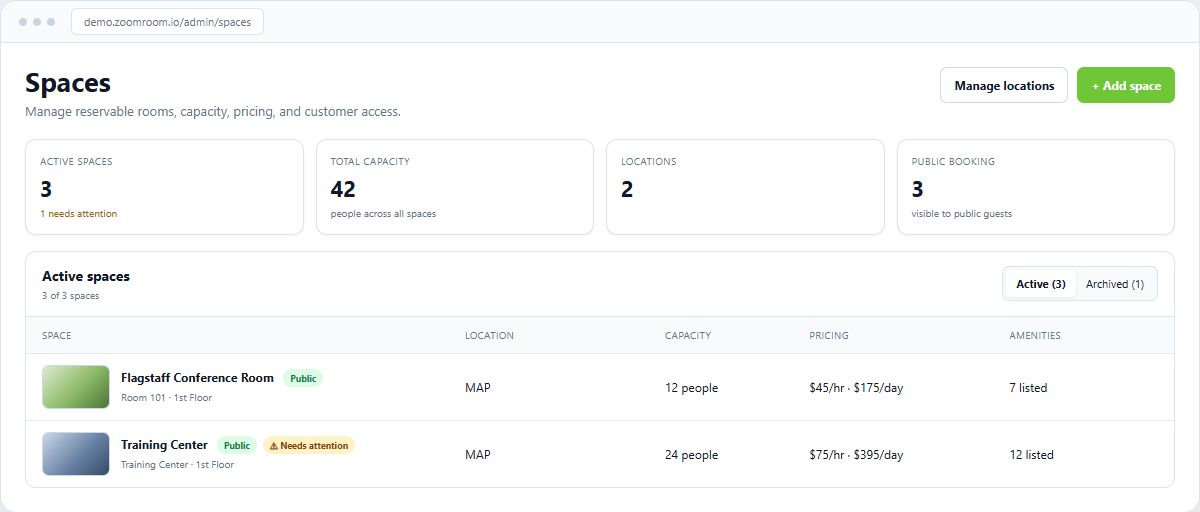
Open Spaces in the admin dashboard and select Add space. Enter the profile, location, pricing, availability, booking rules, photos, and private access information, then save. The Spaces list shows photo thumbnails, capacity, pricing, visibility, and any recommended improvements. Open the saved space and select Preview public page before sharing it with customers.
Follow the numbered callouts.
 1
1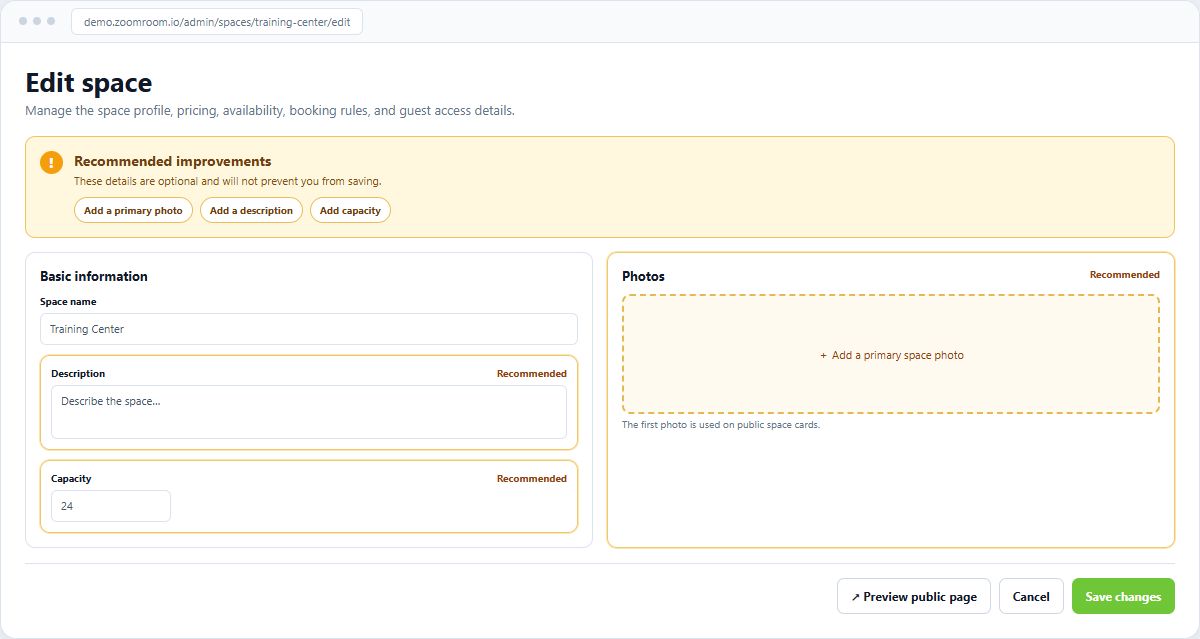 2
2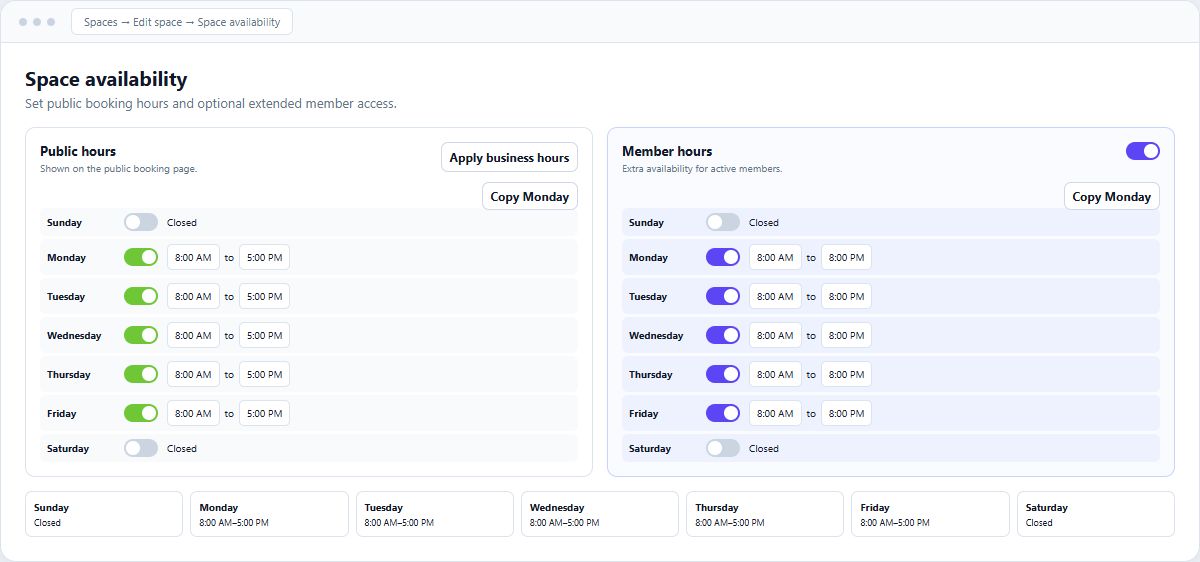 3
3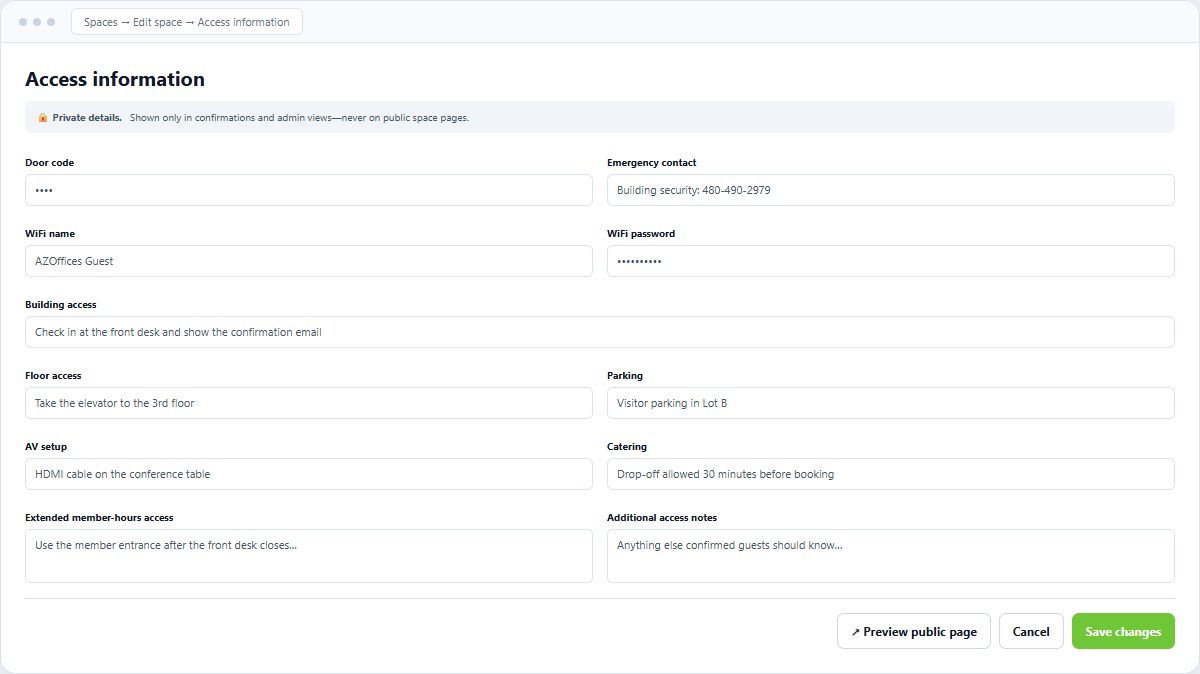 4
4ZoomRoom automatically creates a branded app icon from the display name, logo, and primary color saved in Settings → Branding. The installed shortcut opens your workspace and uses your branded name instead of a generic letter. Phones may cache an older icon, so after changing branding, remove the existing Home Screen shortcut and add it again to see the new design.
Needs attention is a recommendation, not an error. Open the space to see optional improvements such as adding a primary photo, description, capacity, or location. Select an improvement in the amber panel to jump to its highlighted field. The highlight disappears when the detail is added, and none of these recommendations prevents saving.
Follow the numbered callouts.
1234Open Spaces and use Archive on the active-space row. Archiving removes the space from active and public lists without deleting its history or existing bookings. Select the Archived tab to find it later, then choose Restore. Restoring is allowed when the location is active and the workspace has room under its plan limit.
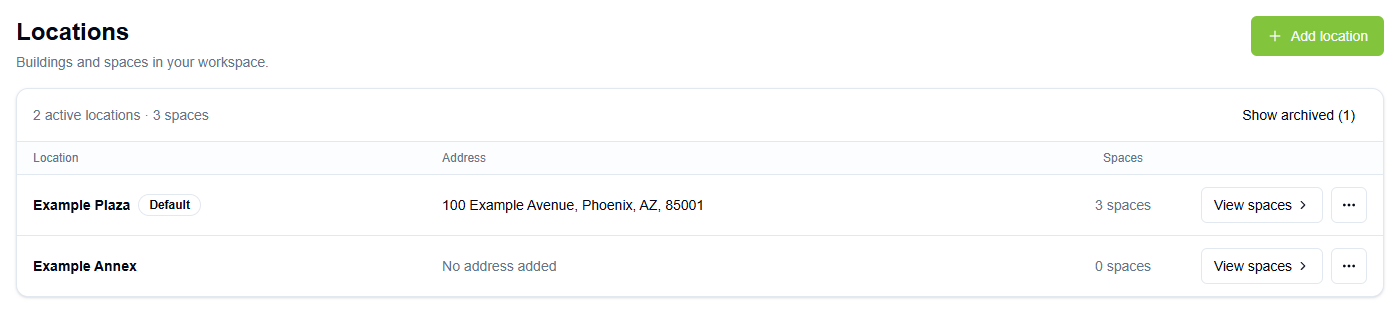
Follow the numbered callouts.
1234Open Workspace → Locations. Compact rows show each building’s address, space count and Default badge. View spaces opens that location’s spaces. Use the Actions (⋯) button for Edit location, Make default, or Archive when available. Default locations and locations with spaces cannot be archived. Show archived reveals retained records; Restore location stays in their Actions menu, and archived rows appear automatically when no locations are active. Existing confirmations still apply. Add location or Edit location opens the building’s address, timezone, contact details, parking and entry instructions. Then edit each space and assign it to a location. The public Spaces page automatically adds an All Locations view and location filters when your workspace has more than one active location. Starter includes 1 location, Pro includes up to 5, and Business includes up to 25.
Follow the numbered callouts.
 1
1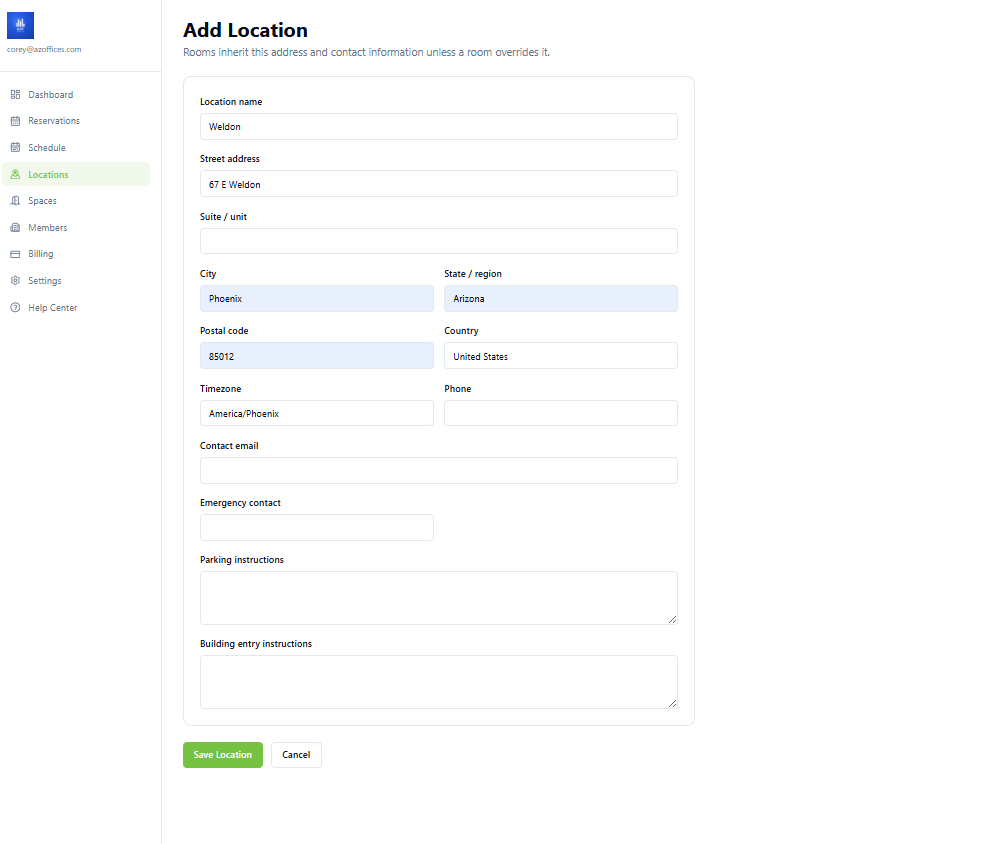 2
2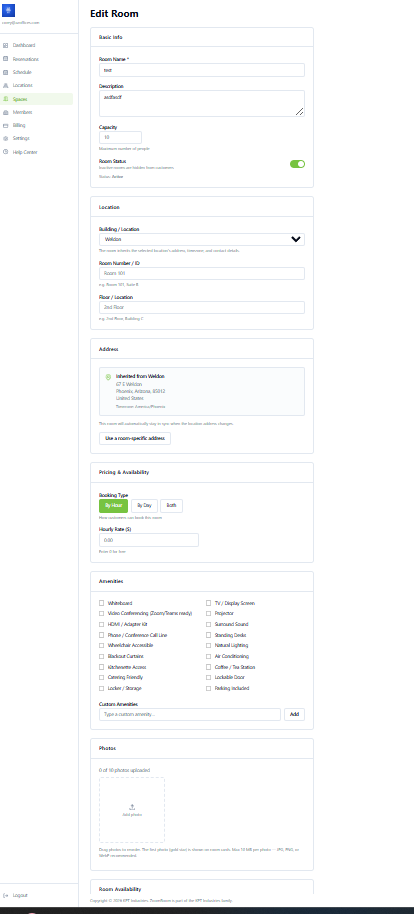 3
3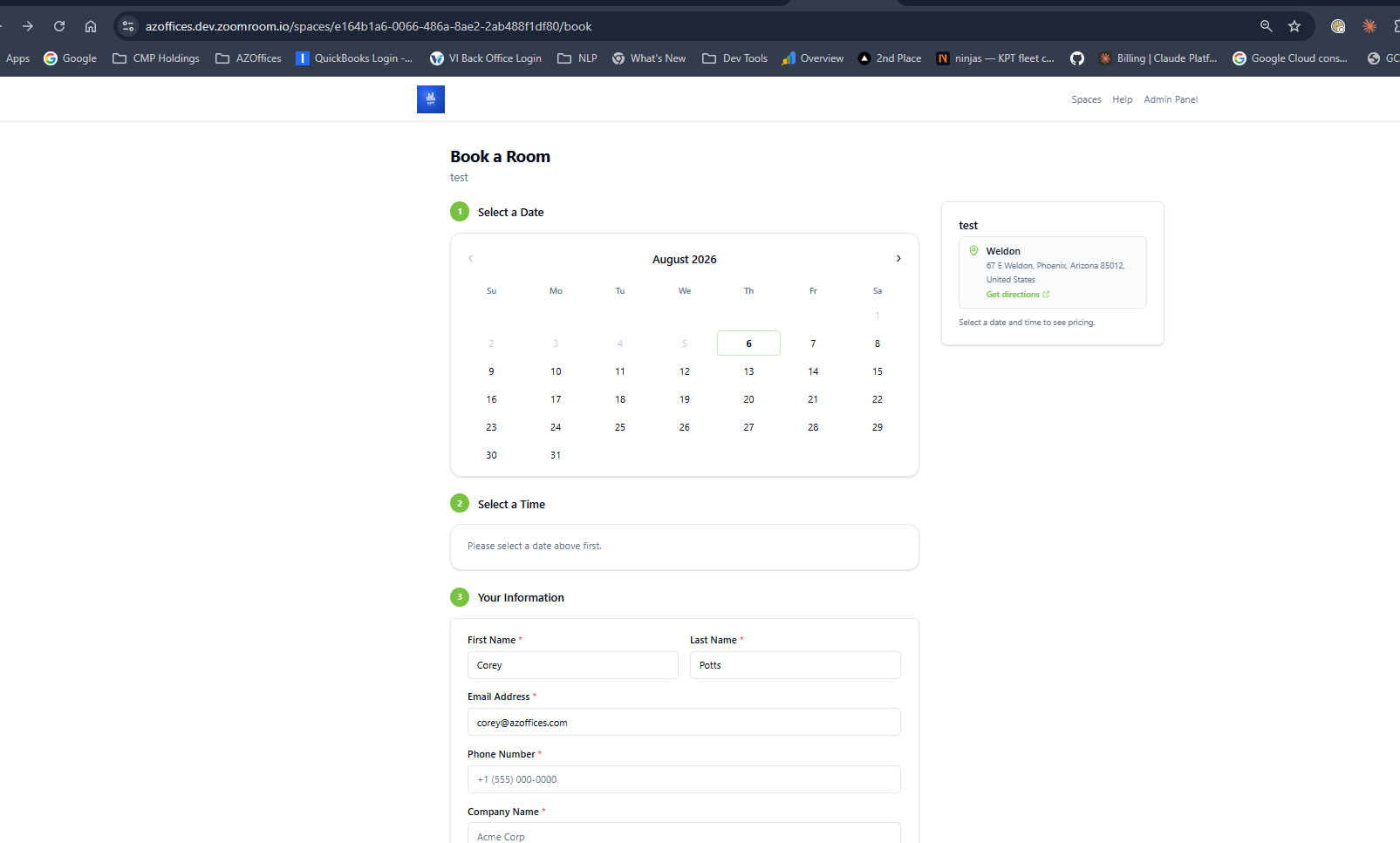 4
4Yes. Edit the member business under Members and select the locations or individual spaces it can use. Its invited employees inherit the same access, and everyone in that business continues to share one monthly hour pool across all permitted locations.
Open Spaces, edit the space, and find Space availability. Public and Member hours appear side by side on larger screens, with a weekly preview underneath. Public hours apply to everyone. Turn on Member hours to add extended availability only for active building members and their invited employees who have access to that space. Use Copy Monday for Tuesday through Friday or copy the saved schedule to other spaces. On the booking page, extended times are labeled Member hours.
Follow the numbered callouts.
12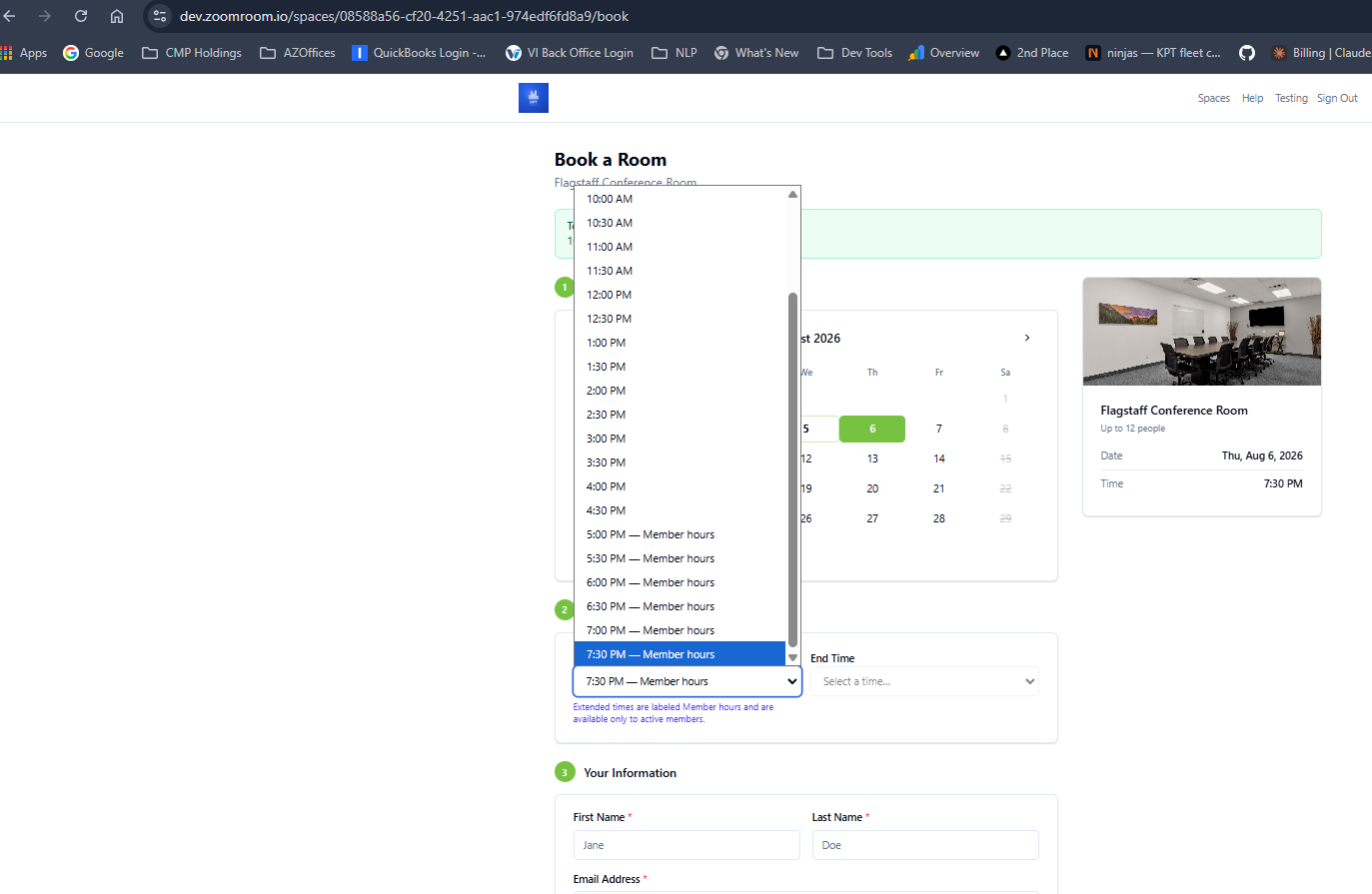 3
3Open Spaces, select the space, and choose Preview public page beside the save controls. ZoomRoom opens the last saved customer-facing page in a new tab. Verify the photos, description, capacity, pricing, amenities, and visibility, then copy the URL from the browser address bar. Unsaved editor changes do not appear in the preview until you save them.
Follow the numbered callouts.
Preview opens the last saved version in a new tab.
No. Space access information is private. ZoomRoom includes it only in booking confirmation emails, the confirmation page after booking, and authorized admin views. The public preview never displays door codes, Wi-Fi passwords, emergency contacts, parking details, member-hours entry instructions, or internal access notes.
Follow the numbered callouts.
1234Yes. When Stripe confirms payment, ZoomRoom marks the reservation confirmed, blocks the time slot, displays the confirmation page, and sends the booking email. Unpaid or incomplete checkout sessions do not confirm the slot.
During ZoomRoom's beta, canceling a paid booking through ZoomRoom issues a full refund through Stripe to the original payment method. The reservation is marked canceled, the time slot becomes available again, and the customer receives a cancellation email. Banks may take several business days to display the refund.
Follow the numbered callouts.
The time slot will reopen and the customer will receive a cancellation email.
Admins can use Bookings for a searchable list or Schedule for a calendar view. Members see their upcoming bookings in the member portal, while registered guests can use My Reservations.
Yes. In the member portal, open an upcoming confirmed reservation and select Manage guests. The member who made the booking or a company manager can add guests, resend invitations, remove guests, or copy the booking details. Removed guests receive a notice; if they already saved the event, they should also remove it from their calendar.
ZoomRoom opens the right area for your account automatically. Owners, admins, and staff go to the admin dashboard; active building members go to the member portal; and outside guests or renters go to My Reservations.
Open Settings in the admin dashboard, find Security, and select Change password. Enter your account email, then use the secure link ZoomRoom emails you to choose a new password.
A building member is a customer business that receives a monthly space-hour allowance. Its portal users share the business allowance and can book only the spaces you give that business access to.
Yes. The primary portal user can invite additional employees from the member portal. You do not need to create every employee yourself, and all employees use the same company allowance and space permissions.
Open Members and select Import Members. Download the CSV template, enter each business and its primary contact, map space access, validate the file, and import. You can send invitations during the import or send them later from Pending Invites.
Follow the numbered callouts.
Open Members and select Pending Invites. Review the imported contacts, select the people who should receive access, and send the invitations. Each contact receives a branded email with a secure account-setup link.
Follow the numbered callouts.
Hours belong to the member business, not to each individual user. All employees draw from the same allowance. Unused hours expire at the end of the company's configured billing cycle. Changing Monthly included hours sets the base for the next cycle. For an immediate change, use Current-cycle hours to add purchased or complimentary hours or record a positive or negative correction. Any overage follows the workspace or company policy.
Open Bookings or Schedule and select Operations in the upper-right corner. You can also open it from the Booking Operations attention card on the dashboard. The three tabs let staff review recurring requests, while admins and owners can also manage office closures and track member overages.
Follow the numbered callouts.
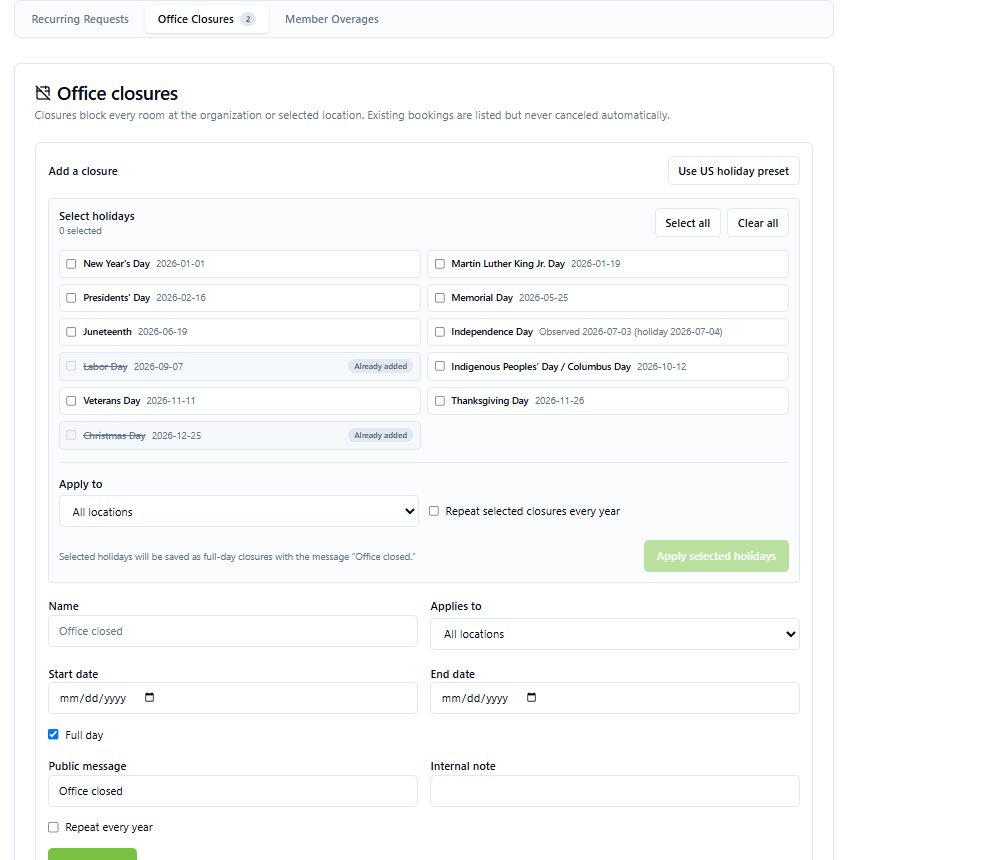 1234
1234Recurring booking is off by default. When a workspace enables it, an eligible member can choose weekly or every-other-week and review every date before submitting. ZoomRoom shows conflicts individually, suggests the closest available time on the same day, and lets the member remove only that date. If approval is required, all requested times are held for 24 hours. Staff can open Recurring Requests, review every date and its member-hour impact, then approve the full series or reject it. After approval, the confirmation email and member portal provide one calendar file containing the entire series.
The workspace can block additional usage, allow it up to a hard monthly cap, or allow unlimited overages. Only the exact reserved time above the remaining allowance is counted, using the space's member overage rate. The member must acknowledge the estimate before booking. Admins can review the overage ledger, export CSV, and mark entries handled; invoicing and payment collection are not automatic yet.
Open Booking Operations, select Office Closures, and add an organization-wide or location-specific closure. Choose several dates at once from the US holiday preset or enter a custom full-day or partial-day closure. Holidays already added are crossed out and cannot be selected twice. New bookings are blocked; existing bookings are listed for staff review and are never canceled automatically.
Yes, when an admin enables the Member rate option for that space. Active members and their invited employees will see the public price and their discounted member price. They pay immediately through Stripe, and the booking does not use the company's shared free-hour allowance. The workspace default discount is 30%, and admins can change the default in Settings or override it on an individual space. Spaces without included access or an enabled member rate remain hidden from that member.
Deactivate a building member from the Members list to stop the entire business from booking. To remove only one employee, edit the member business and remove that portal user. Inactive businesses remain available under the inactive filter for recordkeeping or reactivation.
Open Billing and select Connect Stripe Account. Complete Stripe's secure onboarding and return to ZoomRoom. Once connected, paid space bookings are deposited into that connected Stripe account. The Booking payment setup card shows the live charge and payout status, payout bank name and last four digits, payout schedule, settlement timing, and Stripe payout email. Select Manage payout account to open a secure Stripe panel bound to that connected account when you need to update payout settings. ZoomRoom never stores complete bank-account or routing numbers.
Follow the numbered callouts.
Send space payments directly to your business.
Open Billing and review the Stripe payout email in Booking payment setup. Stripe may use that address for payout and account notices. ZoomRoom connects Standard Stripe accounts, so Stripe controls the address and ZoomRoom cannot change it. Sign in to the connected Stripe account and update its account email. If the personal login email is already correct but ZoomRoom still shows the old address, contact Stripe Support while signed in and include the connected account ID shown by Stripe.
Open Billing, select Statements & Bookkeeper, choose the statement month, and select Generate draft. Draft generation snapshots booking activity plus Stripe payouts with a bank arrival date in that month; it sends no email and charges nothing. The PDF uses MM-DD-YYYY for the statement period, shows its generation time in the workspace time zone, and lists delivery recipient names without email addresses. The PDF and CSV show gross charges, refunds, Stripe fees, adjustments, bank payouts, payout IDs, transaction detail, and location subtotals. If several locations share one connected Stripe account, ZoomRoom reports one workspace-level bank reconciliation and assigns matched transactions to the location label recorded with each booking. If a location was renamed, its former and current labels may appear separately so the subtotals match the transaction rows; unmatched Stripe activity appears as Unassigned. Email sends the selected statement only after you confirm, while Automatic delivery separately controls recurring monthly delivery to configured bookkeeper recipients.
Follow the numbered callouts.
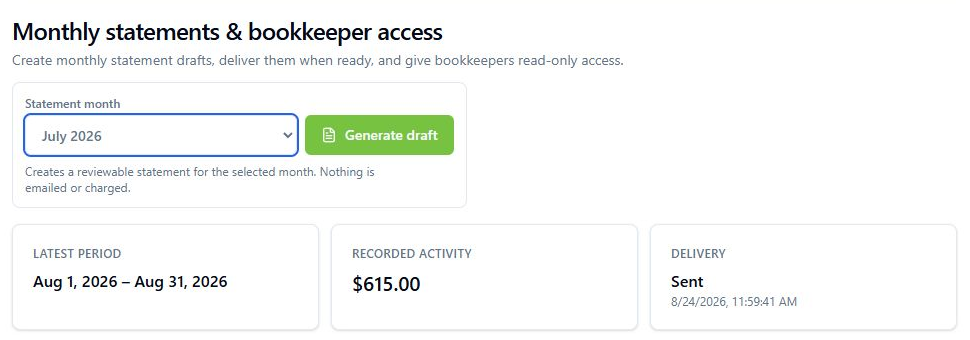 1234
1234In Billing > Statements & Bookkeeper, turn on Email monthly statements, choose the send day, and add at least one active bookkeeper recipient. ZoomRoom sends the previous month's statement on or after that day, with the day evaluated in your workspace time zone. Delivery normally runs around 9 a.m. Arizona time; if a run fails, it retries on a later day of the same month. Drafts and PDFs you download are not emailed until automatic delivery runs or you select Email yourself.
Open Billing > Statements & Bookkeeper and add the bookkeeper as a recipient. Adding the address alone does not email them. Select Preview & send beside their name to review a standard introduction, add an optional personal note, and confirm the recipient before sending. The introduction explains the monthly statement, delivery schedule, PDF, and secure CSV access, but includes no statement or dollar amounts. ZoomRoom records when it was sent; use Preview & resend if the bookkeeper needs another copy. Monthly statements are delivered separately according to your settings or when you choose Email on a statement.
ZoomRoom does not add a transaction fee on any plan. Standard Stripe processing fees still apply under the connected Stripe account's agreement with Stripe.
Paid subscriptions use anniversary billing. Your monthly billing date is based on the date the paid subscription begins. Plan changes take effect immediately and Stripe handles any applicable proration.
ZoomRoom warns the workspace owner as usage approaches the limit. At the limit, new bookings are paused and the owner is prompted and emailed to upgrade. Existing reservations and workspace data remain intact.
A workspace can block bookings when included hours run out, allow overages up to a monthly cap, or allow unlimited overages. ZoomRoom calculates only the reserved time above the remaining allowance using the space's member overage rate and requires the member to acknowledge the estimate. Admins can review and export the Member Overages ledger in Booking Operations. Invoicing and automatic overage collection are not available yet, so the workspace handles billing outside ZoomRoom.
Sign out of any other ZoomRoom or Clerk session, then reopen the invitation in a private browser window. Invitations are tied to the invited email address, so be sure to continue with that exact address.
First select Try again so ZoomRoom can refresh the workspace link for your verified email. If the message remains, confirm the signed-in email shown on the page. Select Switch account and choose the correct workspace. You only need to sign in again if your session has expired.
Staff can manage day-to-day reservations and the schedule. Admins can also manage spaces, members, and workspace settings. Owners additionally control subscription billing and owner-level account settings.
Send us the page you are on, what you expected, and a screenshot if possible. Never include passwords, secret keys, or full payment-card details.